Final Cut Pro & Storage
How to reduce Final Cut Pro source-media storage
Keep the source ranges your edit needs, prepare a smaller Final Cut project, and verify the result before reclaiming disk space with QuickTrim.
Explore QuickTrim for MacA short edit can depend on hours of camera footage. Using twenty seconds from a long recording in Final Cut Pro does not make the recording smaller: the project still references the original file. That matters when you archive a finished job, travel with an edit, or send its media to someone else.
QuickTrim can create smaller source files from the ranges you keep and prepare a Final Cut project that references those extracts. Compatible media is trimmed without re-encoding. The workflow below keeps your originals available while you check the result.
First, identify what is taking up space
Render files, optimized media, and proxies are generated files. Removing the generated files you no longer need through Final Cut can help without shortening your camera originals. Source-media trimming solves a different problem: keeping a small part of a long recording without carrying the entire recording into the resulting project.
Final Cut’s Consolidate command gathers media into the configured storage location. It should not be treated as a command to shorten each source to its used ranges. Apple describes the copy and move behavior in its guide to consolidating projects and libraries.
1. Connect the current Final Cut edit
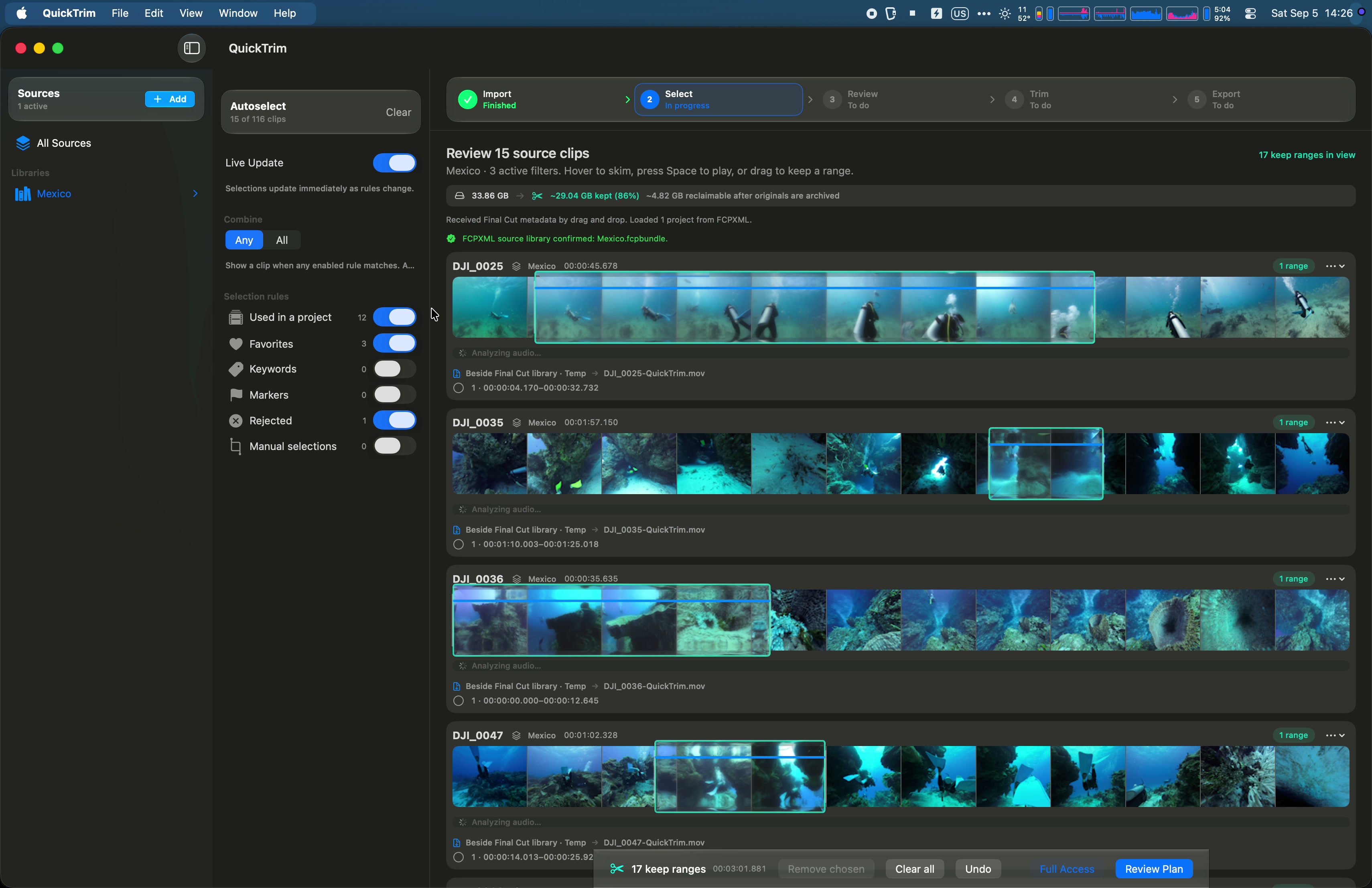
In QuickTrim, choose Sources + → Final Cut Pro…, then drag your library, event, or project from Final Cut into the import guide. A library-wide import gives QuickTrim more of the project-use information you need when several edits share footage.
If you are using a saved XML instead, export a current FCPXML description from Final Cut and use Import Existing XML… in the guide. Grant access to the referenced media folders when asked. Resolve missing files before planning an updated project.
Import again after making changes in Final Cut. An earlier import describes an earlier edit; it cannot account for footage you added afterward.
2. Keep the ranges your projects need
Check the active scope. When several imported projects share sources, start with All Projects rather than assuming one timeline represents everything worth retaining. Use the Used in a project Autoselect rule to select represented project uses, then review the ranges in the filmstrips.
Favorites, keywords, markers, and manual selections can preserve material you also want to keep. Check whether your rules combine with Any or All: adding a filter can narrow the result. Keep extra context where you expect to adjust an edit later.
Unimported projects and other applications may use the same source files. Selections in this workspace are not proof that no other edit needs them.
3. Review the actual trim plan
Open Review Plan. Check which sources will be trimmed, which stay whole, where the new files will go, and the Final Cut outcome. For a first trial, use the project-copy option and retain your originals.
If the plan says your selections leave an edit uncovered, use Keep Everything Used by Final Cut to restore the required coverage, then review again. Complex project structures can prevent a supported replacement handoff; follow the specific compatibility message. Creating clips alone does not update the project.
Safe edges can expand a selected range to independently decodable boundaries. This retains nearby material instead of silently re-encoding. A boundary aligned to a keyframe is not necessarily the exact frame you marked, so use the final plan’s range and size information.
4. Export and check the resulting edit
Run the trim and let QuickTrim verify the outputs. Follow the handoff instructions to import the prepared project into Final Cut, then inspect the result there. Check the starts and ends of extracts, transitions, audio, and the sections that use trimmed media. Confirm that the imported project uses the new files and has no missing media.
Keep the original library and media available until this check is complete. An export finishing successfully and an edit being suitable for your archive are separate checks.
5. Reclaim space after verification
Making extracts initially adds files. Space is reclaimed on a disk only when the originals you no longer need are removed from that disk or moved to a different one. Undo copies and files still in Trash can also retain space. Use the verified output sizes when assessing the result.
Manage Final Cut originals through Final Cut and the completion guidance. Do not delete files inside a .fcpbundle in Finder. If another project still needs a source, keep it. A retained original project also continues to need its original media; the smaller project copy does not change that dependency.
Try one project first
QuickTrim for Mac includes a free allowance so you can try the workflow with your own media. Watch the 40-second app demonstration, or follow the companion guide to trimming ordinary video files without re-encoding.