AstroGauge Deep Dive
One sky, many views: AstroGauge graph settings explained
Explore AstroGauge graph settings with native illustrations: start with a full-day Time × Altitude Cartesian graph, then adjust ranges, coordinates, polar layouts, layers and style.
Explore AstroGaugeI find a sky graph much easier to understand when I give it one job. “When will the core be high enough?” is a different question from “Which way should I point the camera?” AstroGauge lets me change the coordinates, time range and layers so I can ask both without trying to read everything from the same picture.
I start with the least mysterious view: a full day, time running from left to right, height running from bottom to top. Then I narrow the question. This is the graph companion to my astrophotography planning article; the goal is to make the settings feel like useful choices rather than a panel of switches to memorize.
A whole day on two straightforward axes
I open the graph controls, choose Settings → Graph and use All day as my starting preset. I check that the graph type is Cartesian, X is Time and Y is Altitude. Altitude is height above the geometric horizon: 0° is the horizon, positive values are above it and negative values are below it.
Full day runs from local noon to the next noon, keeping the evening and following morning in one continuous plot. For this first illustration I have included full paths and expanded the altitude axis to −90°–90°. That makes the horizon crossing easy to see; it is a deliberate wider range than an above-horizon-only view.
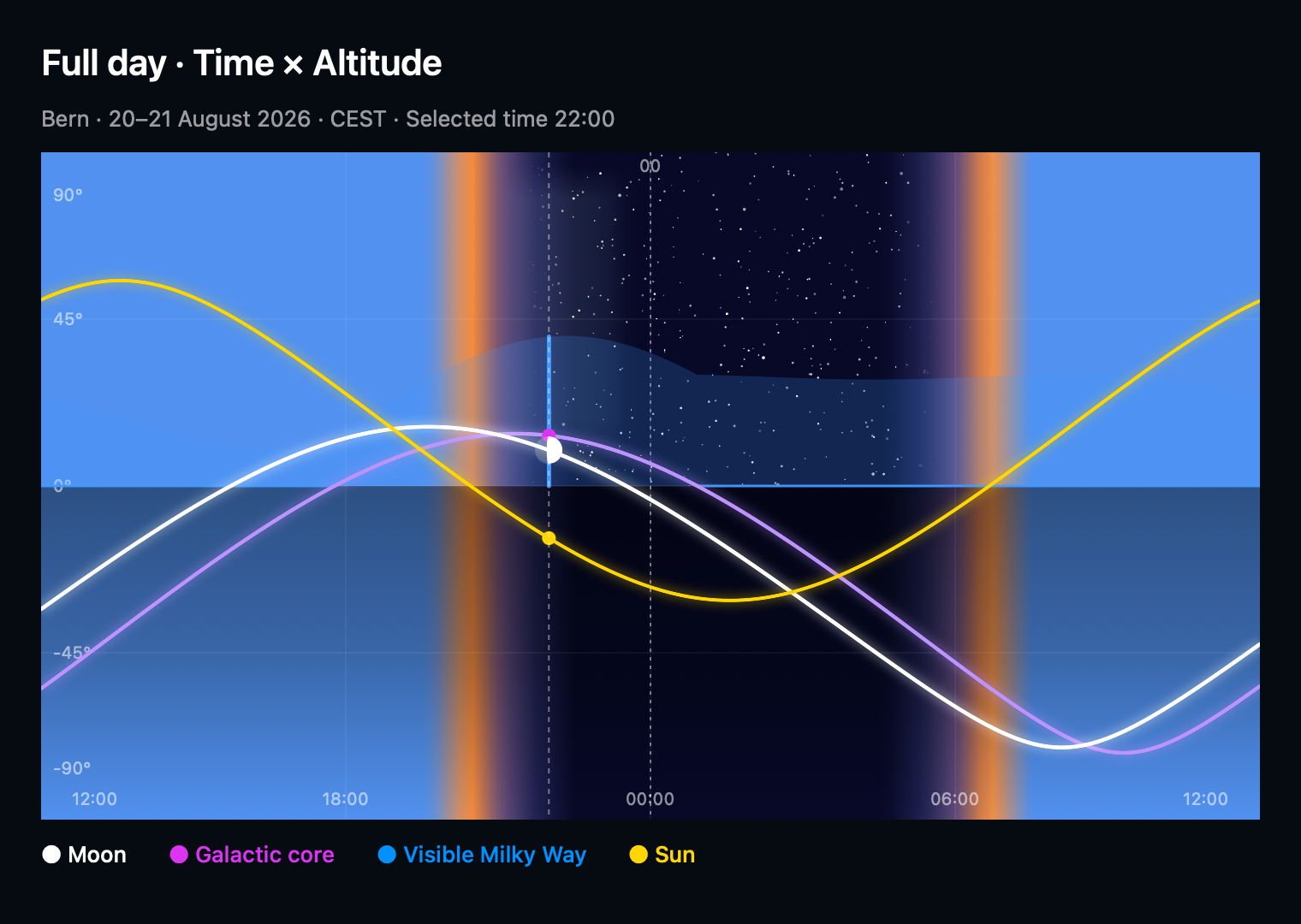
I read this as a timetable. Moving right moves through the day; moving up means a higher calculated position. A crossing of 0° tells me when a path reaches the geometric horizon. It does not tell me whether the ridge in front of the tripod is in the way.
I give the evening more room
Once I understand the day, I rarely need all of it on screen. The Time axis range offers Full day, Sunset to sunrise, Astronomical darkness and Custom. Sunset to sunrise gives the whole evening more room. Astronomical darkness narrows it further to astronomical dusk and dawn, when those events occur, for a closer look at the window with the Sun below −18°.
For a custom window, I can use clock boundaries or the available named solar events. The range handles snap to useful events, midnight and noon. If an event does not occur at that location and date, I do not assume it is available just because I would like it to be. Time reference marks can add useful landmarks to a Time axis.
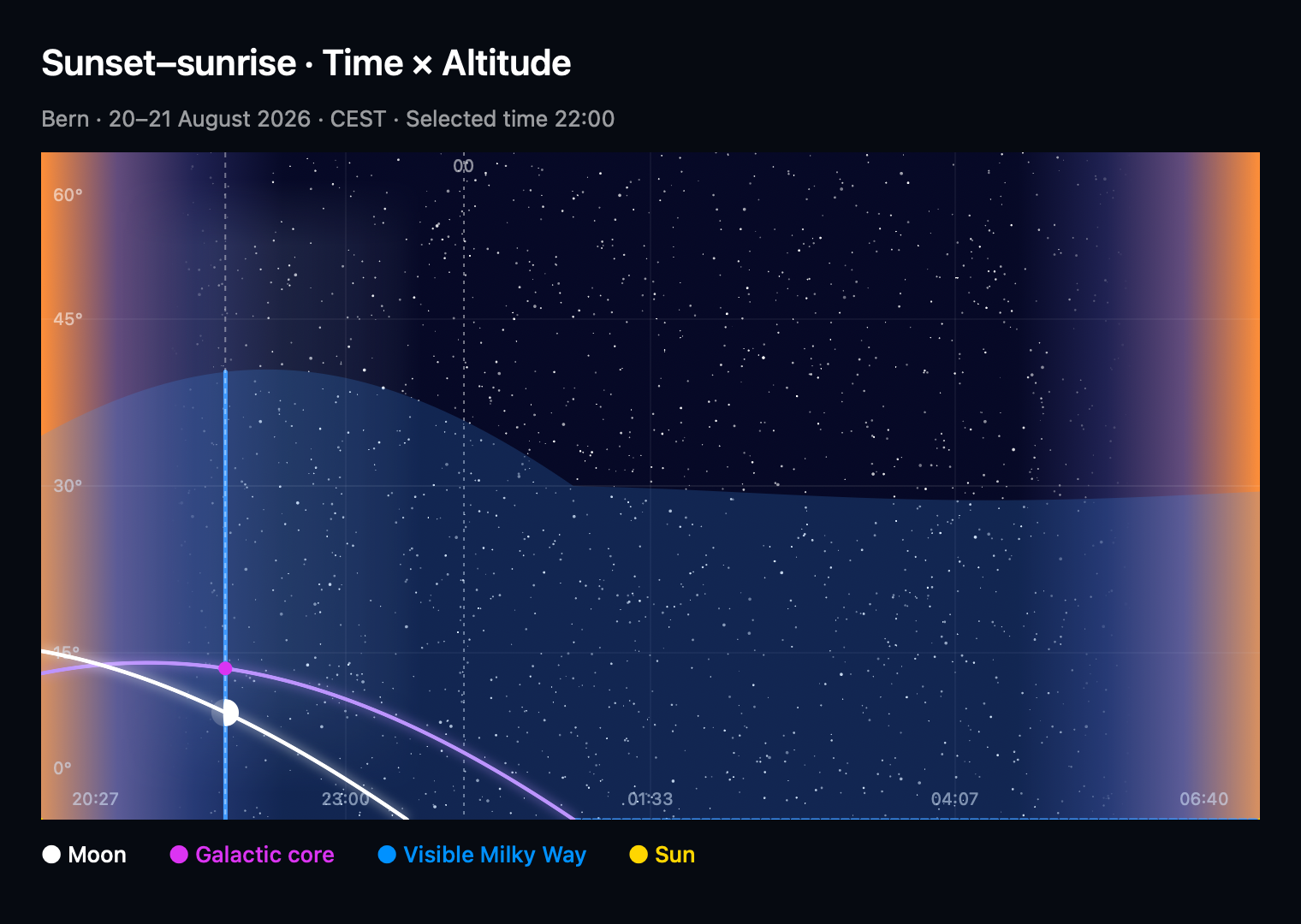
This is often enough to answer my first practical question: when is the subject high enough, and what else is happening then? I can inspect a moment rather than treating the entire curve as one simultaneous arrangement of the sky.
The axes frame the view; filters choose the data
I keep these two jobs separate. An axis range defines the coordinates I am looking at. Data → Filters → Altitude range decides which positions are drawn, including on graphs that have no altitude axis. Narrowing an axis clips paths at its edges; it does not squash an out-of-range Moon onto the edge of the picture.
There is a similar distinction for time. The graph’s Time range controls its displayed window. Data → Time range can follow that window with Same as graph, or use a custom interval to filter the paths while leaving the axes alone. I use the first when I want a simpler view and the second when I want to compare a selected part of the data against a wider scale.
From “when?” to “where?”
When I start thinking about composition, I change X from Time to Direction and keep Y as Altitude. Now the graph is a map of bearings and heights rather than a timetable. The example below narrows direction to 90°–300°, giving the southern part of the scene more room.
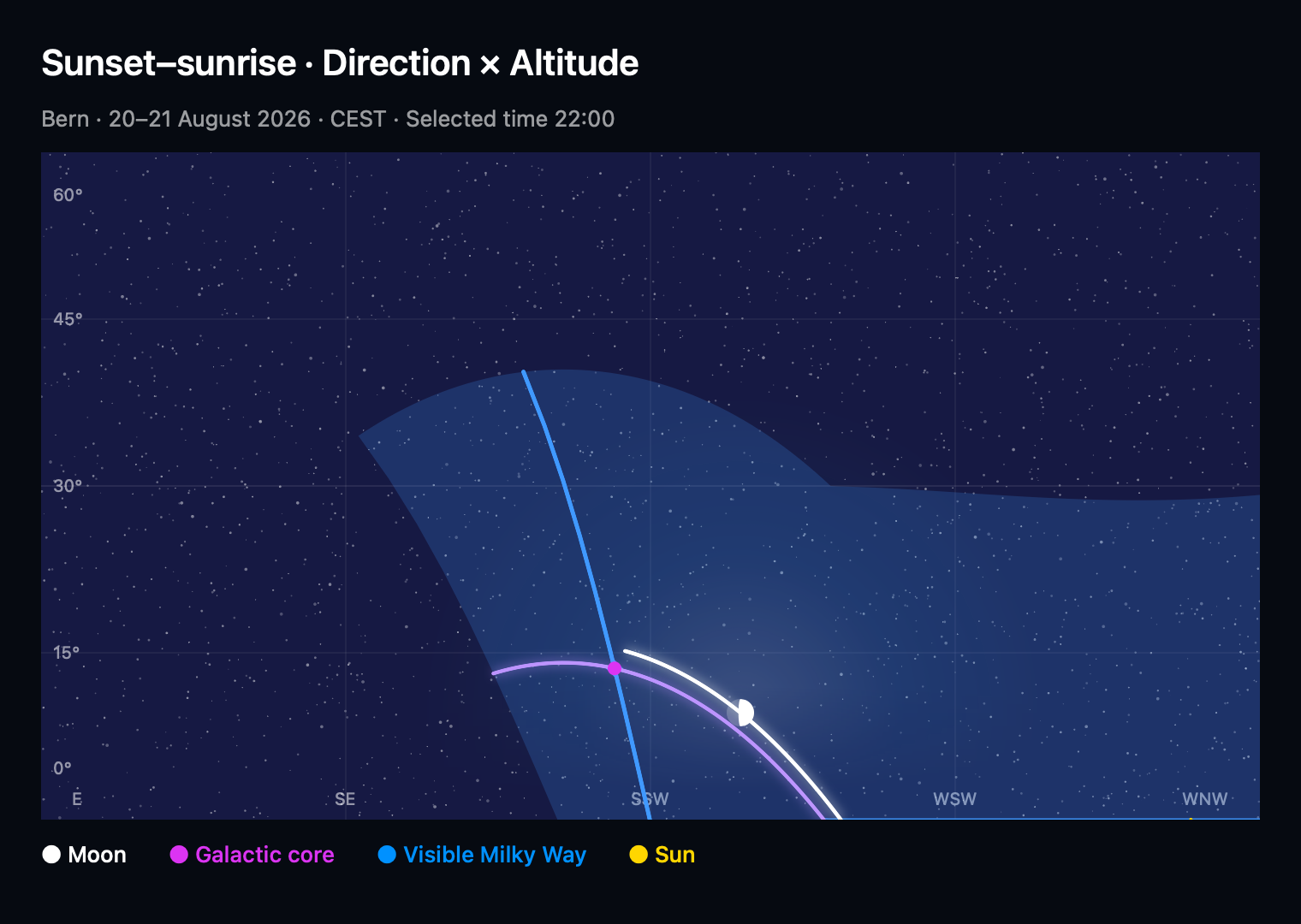
Either Cartesian axis can use Time, Direction, Altitude, Sun height or Moon illumination. I choose a coordinate because it answers something I need to know, not because more axes make the view more impressive. Sun altitude describes the Sun’s height; it is not a second measurement of the Moon or core. Moon illumination describes phase, not the brightness of my finished photograph.
Direction ranges can cross north. I can frame a north-facing composition without stretching it across the two opposite edges of a conventional 0°–360° scale. When a directional view supports compass following, that changes its orientation with my heading; it does not change the underlying astronomical positions.
Sometimes a circle is easier to read
Switching the type to Polar changes the layout, not the sky. Instead of X and Y, I choose an Angular coordinate around the circle and a Radial coordinate across its radius. I always check both. A circle is not automatically a compass or a clock; the selected coordinates give it that meaning.
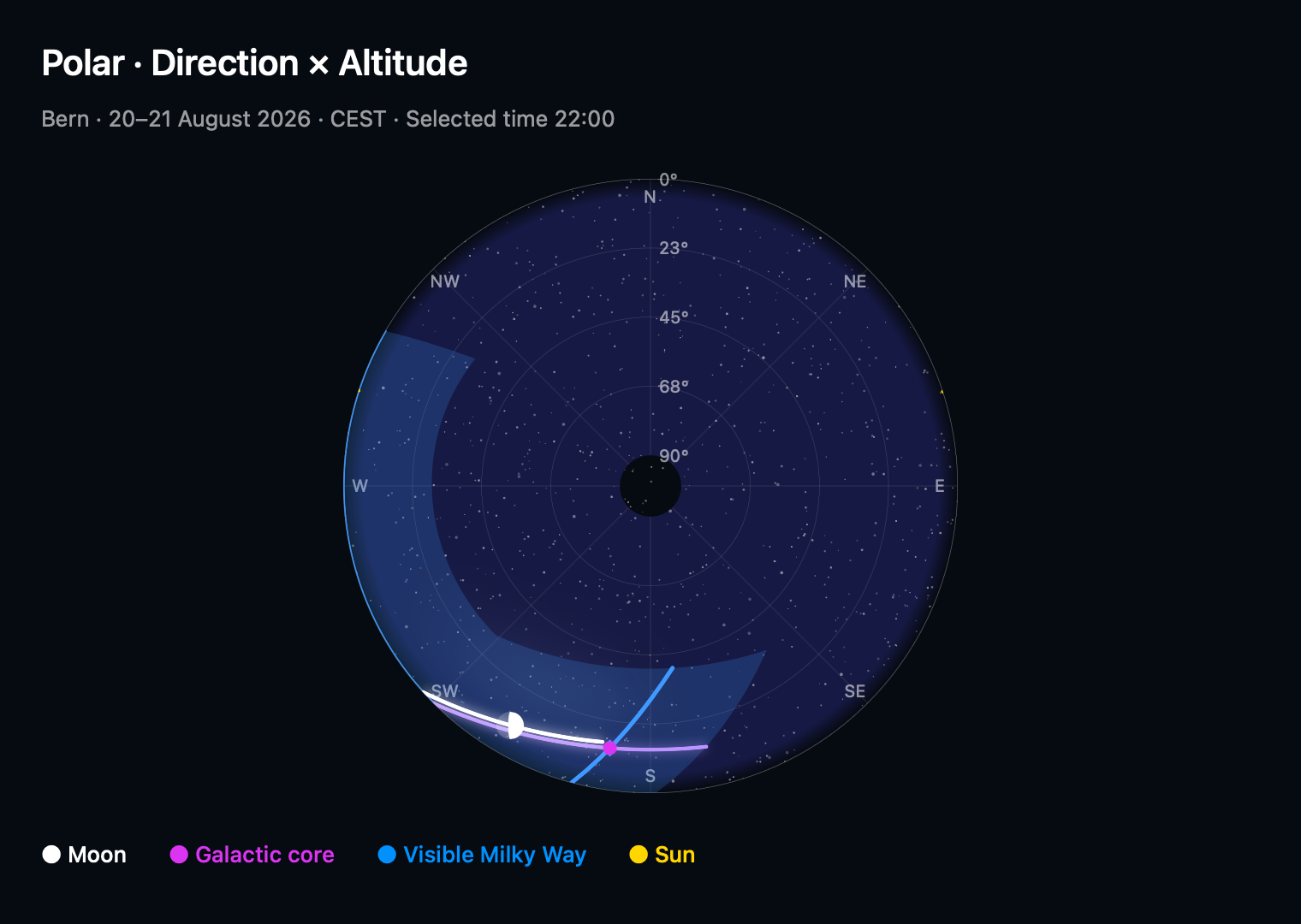
I can also put Time around the circle and Altitude on the radius. That brings the night back into a clock-like arrangement. Another option is Direction around the circle with Time on the radius, which is the starting idea behind Radial night. These are different coordinate systems, even when they share a circular outline.
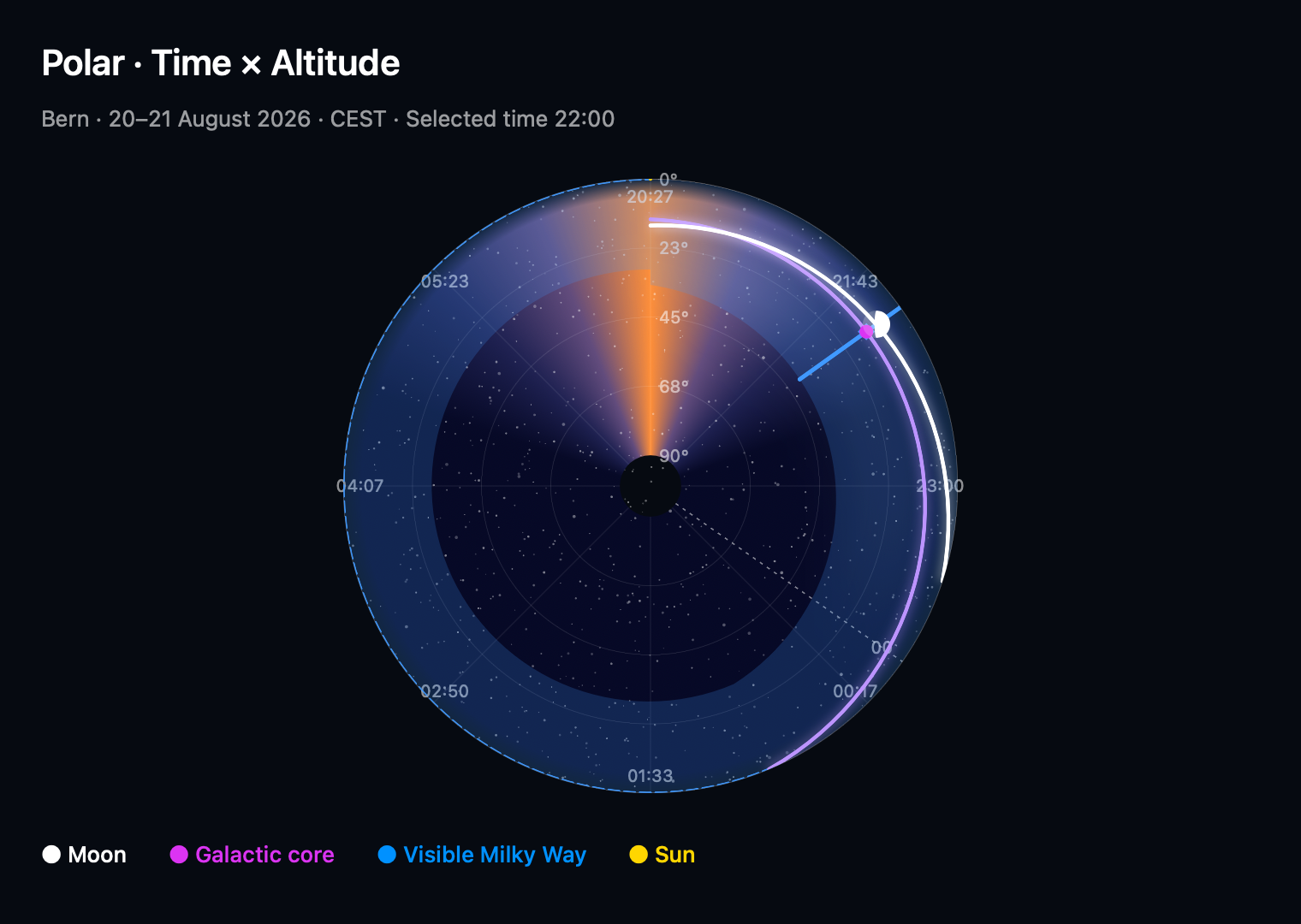
The Angular editor also offers an Opening, which leaves a gap while retaining the complete angular range, and a clockwise or counterclockwise direction of increase. Directional orientation turns the scale; it does not rotate a Time axis. For a measured Radial axis, Inner radius changes the central space. A centre graphic is available for compatible polar layouts: None, Sky map, Compass or Moon phase. It adds context without changing the chosen coordinates; large openings can make it unavailable.
I can give up a measured axis on purpose
Y and Radial have two other choices: None – Overlapping and Data Source. These are arrangements of paths, not extra physical quantities. They are useful when I want to compare timing without reading a measured height from that axis.
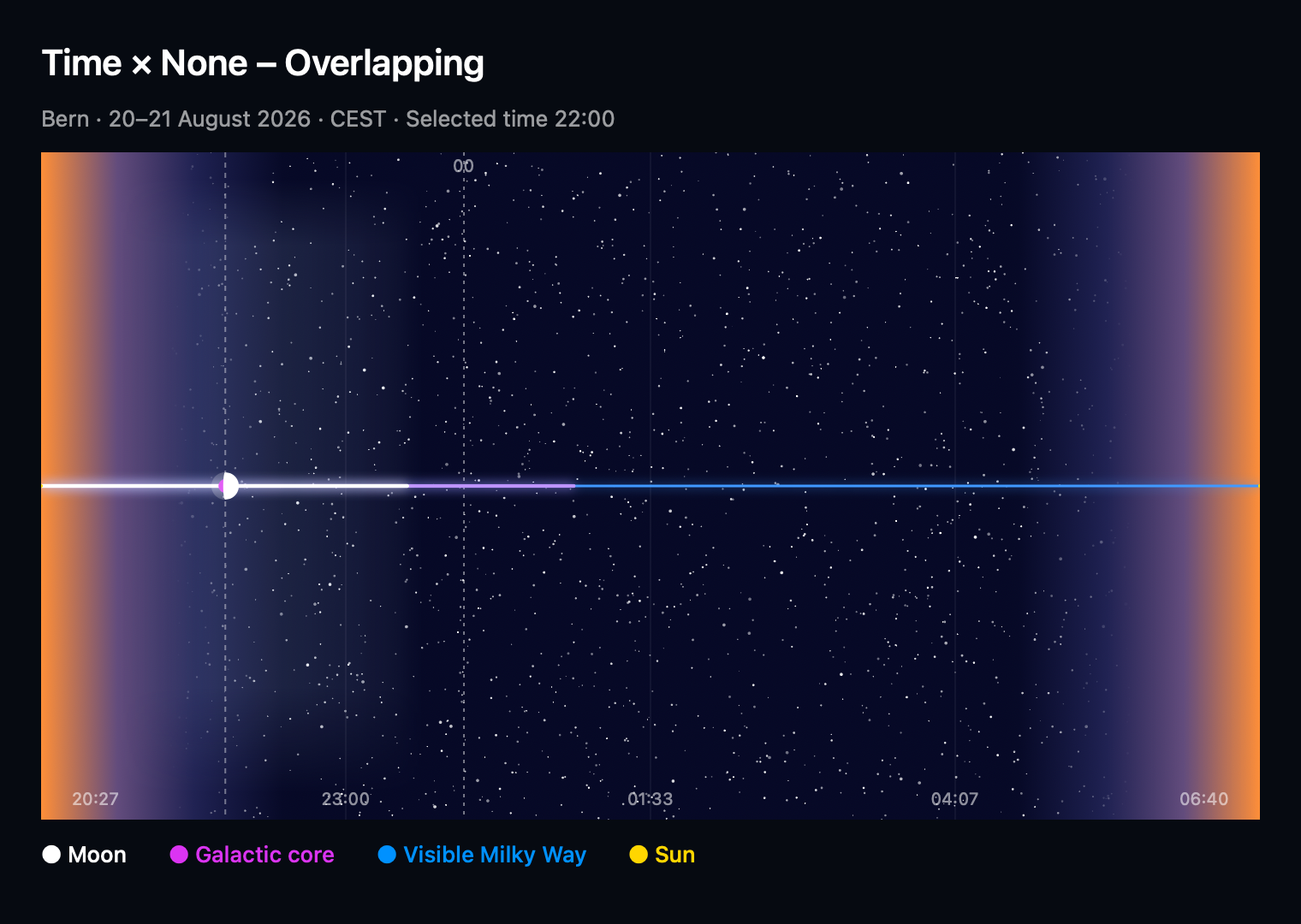
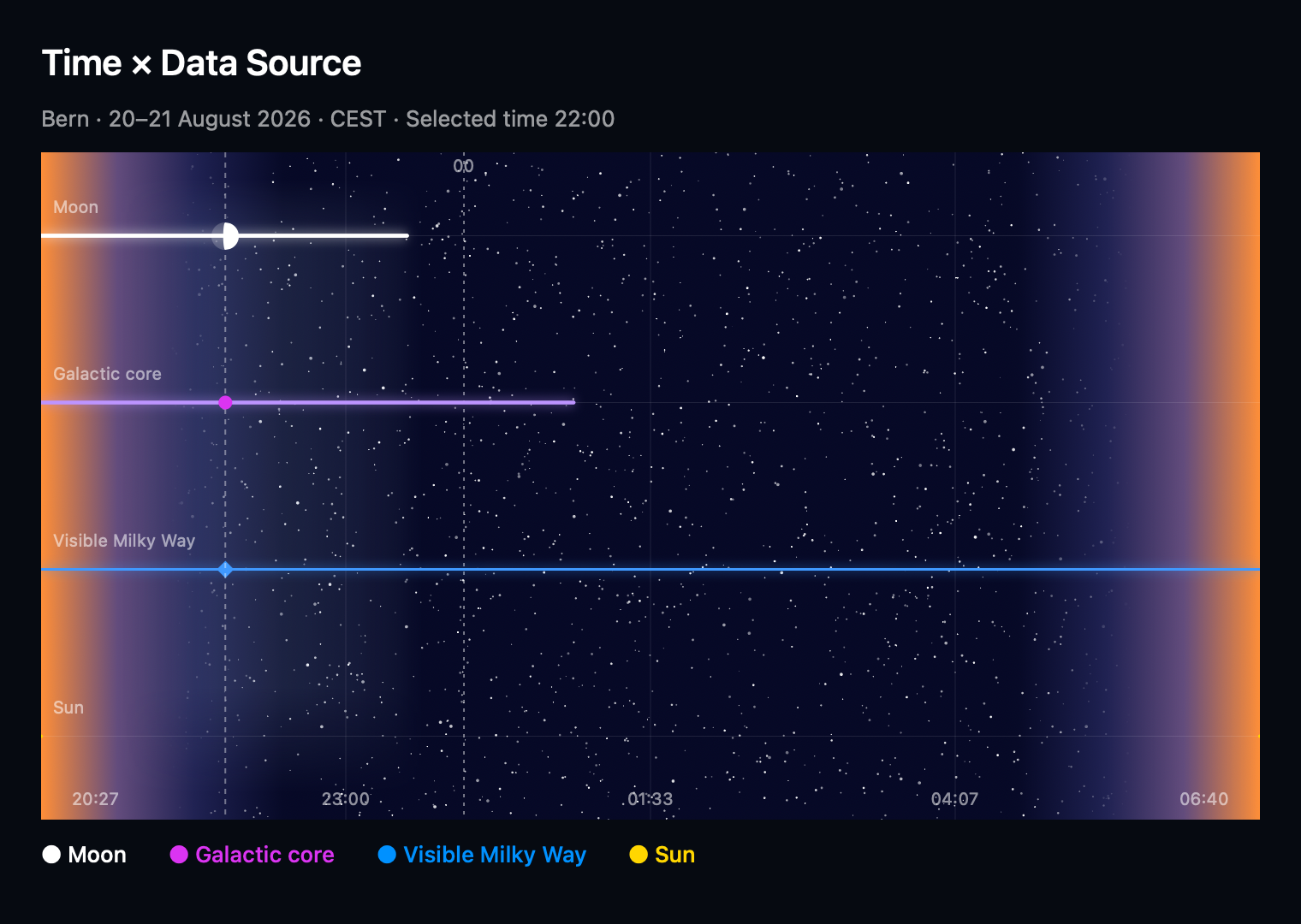
This is where the altitude filter becomes especially useful. I can ask for above-horizon data even though altitude is no longer one of the coordinates. Changing the layout does not have to mean drawing every below-horizon position again.
Layers decide who gets an invitation
The four astronomical layers are Moon, Galactic core, Visible Milky Way and Sun. I can turn each one on or off, with Terrain and Cloud cover available separately. If I am answering a Moon question, hiding an unrelated layer is often more helpful than adding another label.
The visible Milky Way has a ribbon as well as a representative position. Its anchor can follow the core-nearest visible point or the midpoint of the visible band. That distinction matters because the Milky Way is extended across the sky. Its blue ribbon and the purple core are not interchangeable subjects, and neither is a forecast of how bright the band will look in a photograph.
Terrain is an approximate ground skyline, not a survey of nearby trees and buildings. Cloud cover depends on available weather data. These extra layers help with context, but I still check the real sightline and forecast when I plan the trip.
For the composition itself, I can turn on Frame on graph. A Direction axis shows the camera’s bearing edges; Direction and Altitude together show the full camera outline. My planning article includes a camera framing screenshot and the sensor and lens settings behind it.
The finishing touches should earn their space
Under Data → Style, I can choose Lines or Pills, add tick marks and their values, show endpoints, and choose marker points. Lines are a clean starting point; Pills give the paths a different visual weight. I add ticks when I need reference points, and remove them when the graph gets busy.
Tick Placement offers Every hour, Evenly in time or Evenly along sky path. For the latter two I can choose a Count from 2 to 50; hourly ticks follow the clock instead. Labels can show None, Time, Direction or Altitude. That lets me add timing cues to a position graph without changing its axes.
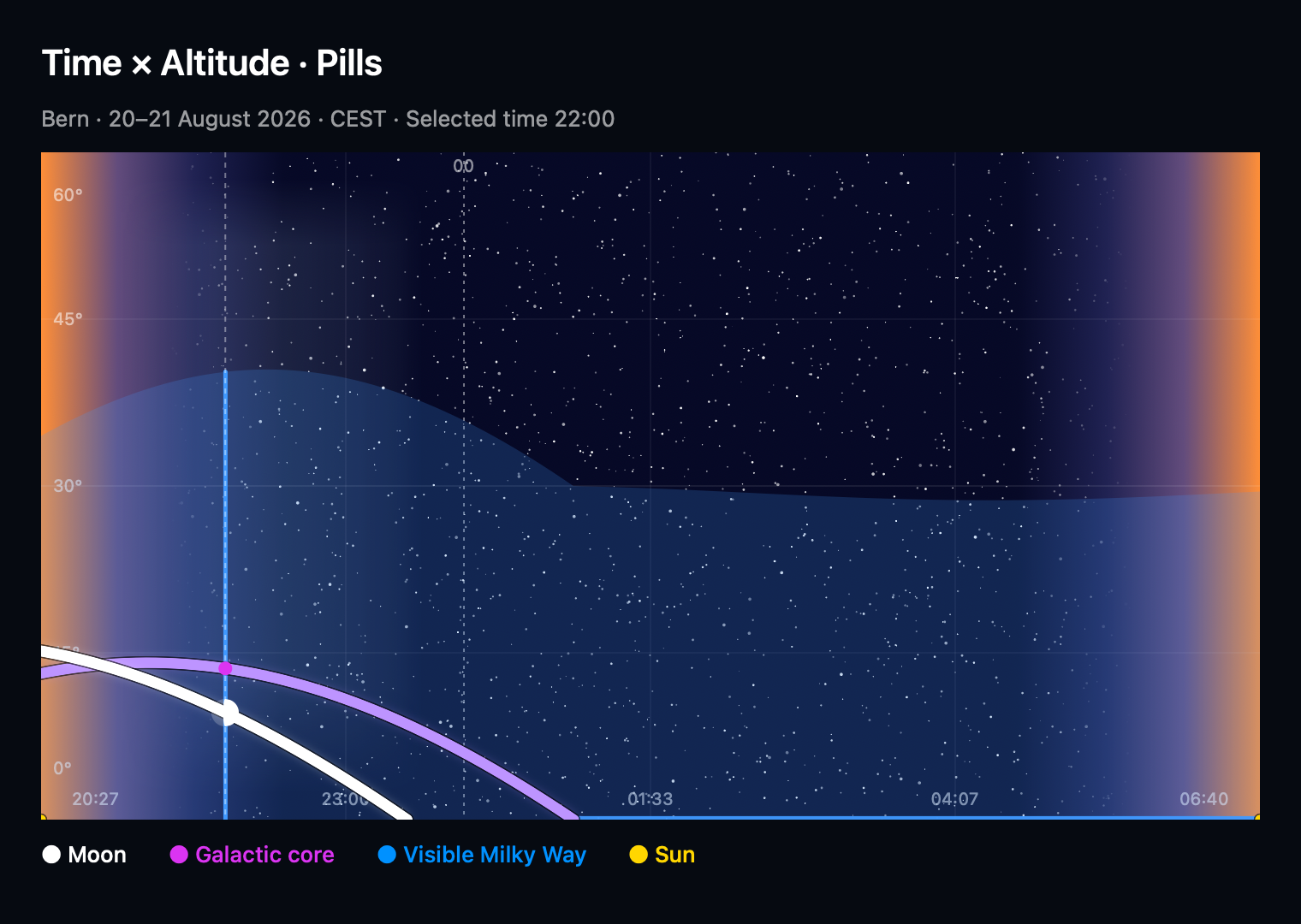
A marker can be automatic, hidden, tied to the inspected or a selected time, placed at a range boundary or midpoint, or set to the highest visible position. I check what it represents before comparing two objects. Markers at each source’s highest position can refer to different times; they do not show one simultaneous sky.
The Data settings are shared defaults. Opening an individual layer lets me override its style, time or altitude filters and marker choice. Untouched values keep following the defaults. Reset overrides returns those choices to inheritance while retaining whether the layer is visible.
I save the useful view and get back to planning
Graph settings use a draft, so I save when I am happy and cancel if the experiment went nowhere. If I find a view I will want again, Save as preset writes a named recipe to the preset library immediately. Cancelling the outer Graph edit discards its applied graph changes; an already-saved library recipe remains. I do not need to rebuild a favourite graph every time I switch between a timing question and a composition question.
Graph appearance and the night rating have different jobs. Drawing less of a path does not rewrite my definition of a good night; I set that in Ideal conditions. Then I return to the planning workflow with a view that helps me choose the date, timing and composition.